

Accessing Your Client Portal Account
After receiving your client user activation email, click the secure link to reach the login screen. You will be prompted to choose a login method:
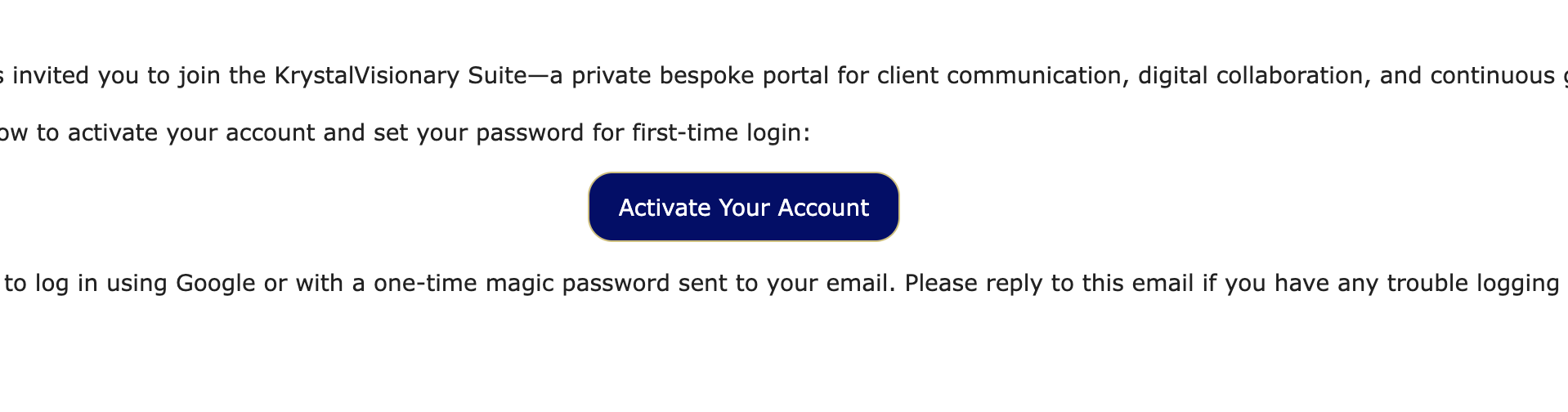
Set a password: Create a secure password to use going forward.
Use a magic link: Receive an email with a single-use login link.
Log in with Google: If your organization uses Google Workspace, you may sign in via your Google account (OAuth).
For ongoing access to the client portal, bookmark:
https://my.krystalvision.coach
To ensure deliverability of emails and prevent notifications from going to spam folder, please add all of these emails to your allowed emails and saved contacts:
The Benefits of Installing the KrystalVision Suite as a PWA
A Progressive Web App (PWA) is a browser based web application that gives you some of the benefits and an experience similar to a native desktop or mobile app, without needing to download it from an app store or take up lots of local storage. Once installed, you’ll be able to launch the KrystalVision Suite client portal directly from your desktop, Start menu, or mobile home screen. You’ll also have access to real-time browser and push notifications if enabled.
Though some browsers, like Chrome, can provide real time browser notifications for websites without having to install it as a PWA, it is still strongly recommended for all clients to install the PWA on both their desktop and mobile devices to provide the best possible experience.
As new features and updates are released regularly to provide additional functionality and value to clients, it will also be the central hub for all client communications aInd deliverables. As such, this is the best way to ensure all clients are using the latest version and not missing crucial updates and notifications.
Installing the KrystalVision Suite as a PWA app prevents multiple instances running in background tabs. After installation, close all browser windows with KrystalVision and use only the standalone app. This ensures up-to-date data, timely notifications, and prevents browser throttling due to inactive tabs. Using the PWA exclusively improves performance and user experience.
Follow the instructions below for your device and browser:
Desktop – Windows
Google Chrome (Recommended):
Navigate to https://my.krystalvision.coach
Look for the install icon at the far-right of the address bar (a monitor with a down arrow).
Click the icon, then click “Install” in the popup window.
The app will open in its own window and appear in your Start menu.
Microsoft Edge:
Click the three-dot menu in the upper-right corner.
Click “Install.” The app will be added to your Start menu and open in a new window.
Hover over “Apps” and select “Install this site as an app.”
Mozilla Firefox:
Firefox does not support PWA installation. Use Chrome or Edge for full functionality, or bookmark the portal URL for quick access.
To enable notifications on desktop (Chrome or Edge):
Open the portal
Click the padlock icon in the address bar
Click “Site Settings”
Under “Permissions,” find “Notifications” and select “Allow” 5. Refresh the app
Desktop – macOS
Google Chrome:
If available, click the install icon in the address bar (monitor with down arrow).
Click “Install” in the prompt.
The portal will launch in a new window and appear in your Applications folder and Launchpad.
Safari:
Safari on macOS does not support PWAs. Use Chrome for full app installation on Mac.
Mobile – iOS
Safari or Chrome:
Open https://my.krystalvision.coach using Safari or Chrome.
Tap the Share icon (square with an upward arrow).
Tap “Add to Home Screen.”
Confirm the name and tap “Add.”
The portal will appear on your home screen like a regular app.
Note: iOS 16.4 or later supports push notifications for installed PWAs. After installation, you may be prompted to allow notifications. Select “Allow” when prompted.
To enable notifications manually (if prompted does not appear):
Go to iOS Settings
Tap “Notifications”
Find “KrystalVision Suite” and ensure notifications are enabled
Mobile – Android (Chrome or Edge)
Google Chrome:
Tap the three-dot menu in the top-right corner
Tap “Install App”
Tap “Install” to confirm.
Microsoft Edge:
Tap the three-dot menu
Tap “Install App”
Confirm installation
To enable notifications on Android:
Go to your device Settings
Tap “Apps” or “App Management”
Find “KrystalVision Suite"
Tap “Notifications” and ensure they are turned on.
After Installation:
Once installed, the KrystalVision Suite will be available like a native app from your home screen or app launcher. Notifications will appear as system push alerts or browser notifications, depending on your device and permissions.